


A visitor fills out your contact form and hits send. They see the green “thank you” message. Your site fires off an email notification, and everyone assumes the inquiry is now safely on record.
Then a week later, a customer writes, “I sent you a message and never heard back.” You check the inbox. Nothing. Maybe it landed in spam, got buried under newsletters, or was sent to an address nobody checks anymore. Maybe your host’s mail setup quietly dropped it.
This is the gap that storing Contact Form 7 submissions closes. Email is a notification. It isn’t a record. Keeping a copy of each submission inside WordPress means the inquiry still exists even if the email never reaches you.
Does Contact Form 7 Store Submissions by Default?
No. Out of the box, Contact Form 7 does not save submissions to your WordPress database.
It helps to separate three things that often get blurred together:
- Receiving a submission: The visitor submits the form and WordPress processes the data.
- Sending a notification: Contact Form 7 uses your mail settings to email the data to you.
- Storing the submission: Keeping the submitted data somewhere you can come back to later.
Contact Form 7 does the first two. The third isn’t part of its core behavior. Once the email is sent, the plugin has done its job, and the submitted content lives only in that email (and any copy sent to the visitor).
If you want a stored record, you need an addon or plugin built for that. Some store entries in the database, and some, like TimAddons, use their own dedicated table. We’ll get to that.
Why Relying Only on Email Notifications Can Be a Problem
Email works well most of the time. But “most of the time” is a shaky foundation for something like sales inquiries or support requests. Here are the situations that cause trouble in practice:
- Spam filtering. Messages sent from your own website to your own domain are a classic spam-filter trigger, especially without proper authentication.
- Mail configuration issues. A wrong “From” address, a mistyped recipient, or a misconfigured SMTP setup can stop delivery entirely, sometimes without any visible error.
- Hosting limitations. Some servers limit or block outgoing mail.
- Busy inboxes. Even when the email arrives, it can sit unread beneath a hundred other messages.
- Team confusion. If three people receive the same notification, each may assume someone else replied.
- Finding old inquiries. Searching an inbox for “that quote request from March” is slower than it sounds, especially if you’ve changed email providers since.
None of this means email is unreliable by nature. It means email wasn’t designed to be your lead database. Storing submissions doesn’t guarantee you’ll never miss an inquiry, but it gives you a second place to look.
Benefits of Storing Contact Form 7 Submissions in WordPress
Keep a Record of Every Stored Submission
When submissions are saved inside WordPress, you have one central place where inquiries accumulate. You’re no longer relying on whichever inbox happened to receive the notification. If someone leaves the team or the email account changes, the history stays with the website.
Find Older Submissions More Easily
Imagine you need to find every inquiry mentioning a particular product, or one message from a specific person last spring. In a stored list, you can search and filter. In a mailbox, you’re scrolling and guessing at keywords. The difference grows as the volume does.
Manage Leads More Efficiently
If your site gets a handful of inquiries a month, almost any system works. At a few per day, things start slipping. A stored list lets you see what has been reviewed and what hasn’t, which makes it easier to follow up with Contact Form 7 leads instead of relying on memory.
Reduce Dependence on Email
Notice the word is reduce, not replace. You’d typically keep email notifications on, since they’re still the fastest way to know something just came in. Storage simply means a failed or missed email is no longer the only copy of the message.
Export Submission Data When Needed
Being able to export submissions as a CSV file is more useful than it sounds. You might need it for a monthly report, to load contacts into a CRM or spreadsheet, or just to keep an offline backup of your Contact Form 7 submissions. A CSV opens almost anywhere.
Review Submissions From WordPress
You’re probably already logged in to your dashboard every day. Having submissions available there means you don’t need to switch to a mail client to check what came in, and anyone with the right access can review entries without being added to an email list.
How Contact Form 7 Submission Storage Works
The process is simpler than it might sound:
- A visitor submits the form.
- The addon captures the submitted data.
- That data is saved, usually in the WordPress database.
- An administrator opens the stored entries to review and manage them.
- If needed, the data is exported.
The part worth understanding is step 3. WordPress keeps most of its content in standard database tables. Some plugins save form entries into those general-purpose structures. Others create a dedicated table just for submissions.
A dedicated table keeps form data separate from posts, pages, and settings. In practical terms, that makes submission records easier to organize and manage without mixing them into the rest of your site’s content. It’s a design choice, not a magic feature, but it’s a sensible one when a site collects entries regularly.
Is Storing Contact Form 7 Submissions Better Than Email?
Not exactly. They do different jobs, and the question is better framed as “what is each one good for?”
| Email Notifications | Database Storage |
| Useful for immediate alerts | Useful for keeping records |
| Convenient for responding | Easier to search and review |
| Can be affected by email delivery issues | Accessible through WordPress when properly stored |
| Not ideal for managing large numbers of submissions | Better suited to organized submission management |
Email tells you something just happened and lets you reply quickly. Storage gives you a durable, organized history. Running both together is a more dependable workflow than relying on either one alone.
How TimAddons Helps Store and Manage Contact Form 7 Submissions
If you want something built specifically for this, “TimAddons – Submission Log & Automation” offers a Contact Form 7 addon for storing and managing submissions. Here’s what it does:
- Stores Contact Form 7 submission data in its own dedicated custom database table
- Provides a dedicated area for viewing and managing submissions
- Lets you search and manage submission information
- Uses server-side pagination, so long lists of records are handled in manageable pages
- Includes read/unread status, so you can see what you’ve already looked at
- Supports submitted attachments where applicable
- Adds a WordPress dashboard widget for a quick look at activity
- Allows CSV export of submission data
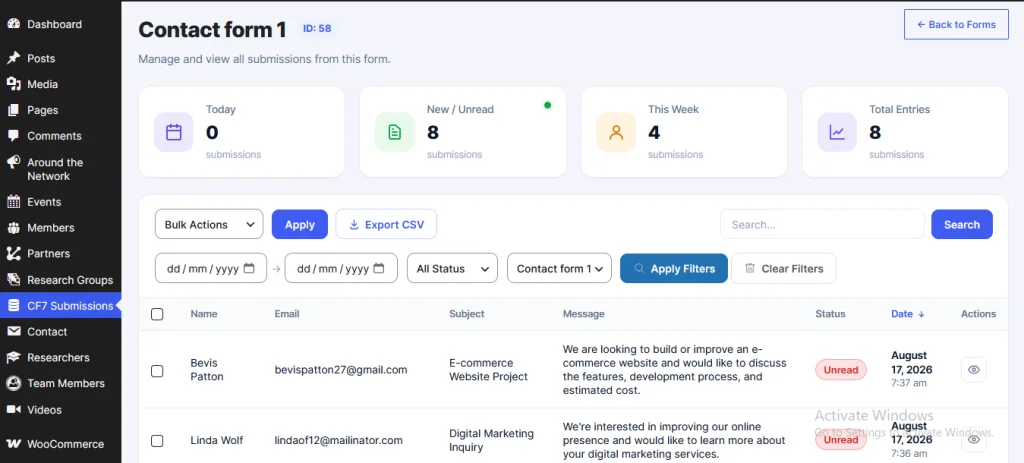
It’s a practical option for people who’ve outgrown relying on notification emails alone. It doesn’t fix email delivery problems, because that’s a separate issue to solve with your mail configuration. What it does is make sure the submission data is kept and manageable inside WordPress.
What Happens If You Didn’t Store Your Previous Contact Form 7 Submissions?
This is worth being straightforward about. If your site has been running Contact Form 7 without any storage solution, installing one now will not bring back the old submissions. They were never saved, so there’s nothing for the plugin to recover.
Your old emails may still hold some of that data, depending on how long your email system retains messages and whether anything was deleted or filtered. It’s worth searching your inbox, spam folder, and any archived mail before assuming it’s all gone.
The practical takeaway: storage only protects you going forward. The best time to turn it on was when the form first went live. The second best time is now.
Best Practices for Managing Contact Form 7 Submissions
- Keep email notifications on where they’re useful, especially for fast response times.
- Store submissions independently when the information matters to your business.
- Review stored entries regularly so nothing sits unnoticed.
- Export when needed, particularly if you want an offline backup.
- Limit who can access submissions. Form data often includes personal details, so give access only to people who need it.
- Don’t keep personal data longer than necessary. Delete entries you no longer need.
- Follow the privacy rules that apply to you, such as GDPR or local data-protection laws, and make sure your privacy policy reflects what you collect and store.
- Test after setup. Submit your real form and confirm the stored entry looks right before you rely on it.
Conclusion
Email notifications are great for instant alerts, but they were never meant to serve as a long-term record of your website inquiries. Storing your Contact Form 7 submissions in WordPress gives you a more organized way to review, search, manage, and export that data, and a backup if an email goes astray.
If you’d like dedicated storage and management for Contact Form 7, TimAddons is one option worth a look. Either way, the larger point stands: don’t let a single email be the only copy of a customer’s message.
SEO Deliverables
SEO Title Options
- Why You Should Store Contact Form 7 Submissions in WordPress (best: matches search intent and includes the primary keyword)
Meta Description: Contact Form 7 doesn’t save submissions by default. Learn why relying on email alone is risky, how submission storage works, and how to manage and export your entries.
Suggested Categories: Contact Form 7, WordPress Tutorials
Suggested Tags: Contact Form 7 submissions, store form submissions, Contact Form 7 database, form entries, lead management, CSV export, WordPress forms, Contact Form 7 addon