

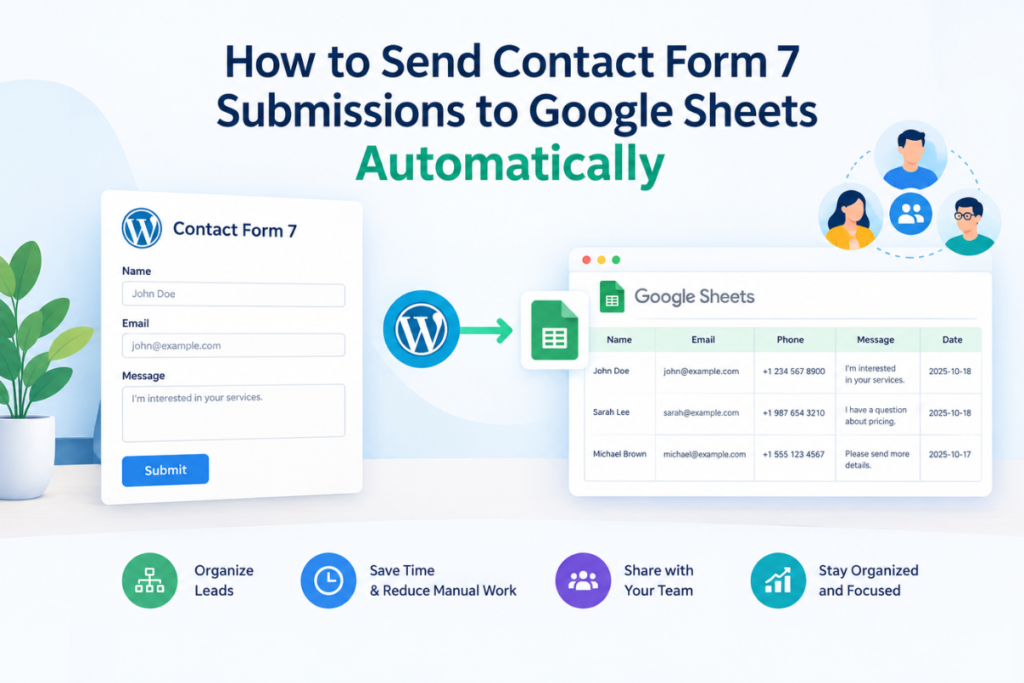
If your website gets a steady stream of inquiries, copying details from email notifications into a spreadsheet gets tedious fast. It also invites mistakes: a skipped row, a mistyped phone number, a lead that sits unnoticed in someone’s inbox. The fix is to connect Contact Form 7 to Google Sheets so each submission lands in a spreadsheet automatically. You can do this with a compatible integration plugin or service that transfers form data to your sheet whenever a visitor submits a form. Below you’ll find what you need, the general setup process, and where TimAddons fits in.
Why Send Contact Form 7 Submissions to Google Sheets?
Contact Form 7 is built to send email notifications. It isn’t a lead management tool, and on its own it doesn’t keep a organized record of your submissions. A spreadsheet fills that gap.
Say a small renovation company receives quote requests through its website. If each request arrives as a separate email, the owner has to search the inbox to see who still needs a reply. In a shared Google Sheet, every request is a row, and a “Status” column shows what’s been handled.
Here’s what that setup gives you:
- Organization: all inquiries live in one place instead of scattered across inboxes.
- Less manual entry: no more copy-pasting from emails.
- Team access: authorized colleagues can review leads without needing access to the WordPress dashboard or your email.
- Sorting and filtering: narrow things down by date, name, or follow-up status.
- Easier tracking and reporting: a marketing team can count inquiries per week or note which ones turned into customers.
This is the core of Google Sheets lead management: a simple, familiar tool your team already knows how to use.
What Do You Need Before Connecting Contact Form 7 to Google Sheets?
The exact requirements depend on the integration you choose, so check its documentation first. In general, you’ll need:
- A working WordPress site with Contact Form 7 installed and a form that already works.
- Access to the Google account that owns, or can edit, the destination spreadsheet.
- A compatible integration plugin or service.
- A Google Sheet with sensible column headings.
Also decide who should see the data. Form submissions often contain names, email addresses, and phone numbers, so share the spreadsheet only with people who need it.
How to Send Contact Form 7 Submissions to Google Sheets Automatically
The details vary between tools, but the process follows the same pattern.
- Create a Google Sheet. Add a header row with the columns you want, such as Name, Email, Phone, Message, and Submission Date. Clear headings make mapping easier later.
- Choose a compatible integration solution. Contact Form 7 doesn’t send data to Google Sheets by itself. You need a plugin or service that bridges the two. Read its documentation and confirm it supports Contact Form 7 and the kind of data your form collects.
- Connect the required accounts. This usually means authorizing the tool to access your Google account or a specific spreadsheet. The steps differ by solution, so follow the instructions from the tool you picked rather than a generic checklist.
- Map form fields to spreadsheet columns. Tell the integration where each piece of data should go: the submitted name into the Name column, the email into the Email column, and so on. Make sure the field names in your form match what you expect to see.
- Configure automatic syncing. Set the integration to send new submissions to your chosen spreadsheet. Some tools let you choose which forms to include, so check that the right form is selected.
- Submit a test entry. Fill out your form as a visitor would, then check the sheet. Confirm the data appears in the correct columns and nothing is missing or misplaced. If something looks wrong, revisit your field mapping.
Test again after changing your form, such as adding or renaming a field, since the mapping may need updating.
How TimAddons Helps Connect Contact Form 7 With Google Sheets
If you’d rather not piece together several tools, TimAddons – Submission Log & Automation is one option to consider. It supports automatically sending Contact Form 7 submissions to Google Sheets, so form data can be available in a shared spreadsheet for lead handling and follow-up.
In practice, that means less manual data entry for whoever manages inquiries, and an easier way for authorized team members to review new leads. A sales assistant, for example, can open the sheet each morning and see what came in, without waiting for someone to forward emails.
Because setup specifics depend on the plugin version, check the current TimAddons documentation for the exact steps and supported features, especially if you need to sync particular field types, attachments, or past submissions. If that sounds like what you’re after, you can explore TimAddons – Submission Log & Automation for Contact Form 7 by Tim Developer to see whether it fits your workflow.
Frequently Asked Questions
Can Contact Form 7 send submissions to Google Sheets automatically?
Not on its own. Contact Form 7 handles the form and email notifications, but a compatible plugin or service can pass each submission to Google Sheets automatically.
Do I need to copy form submissions into Google Sheets manually?
No. Manual copying is only necessary if you haven’t set up an integration. Once syncing is configured, new submissions are sent to your spreadsheet without extra effort. Still, check the sheet occasionally to make sure everything is arriving as expected.
Can my team use Google Sheets to manage website leads?
Yes. Google Sheets works well for small teams. You can share the file with specific people, add columns for status or notes, and filter by date or follow-up stage. If your lead volume grows significantly, you may eventually want a dedicated CRM, but a spreadsheet is a practical starting point.
Conclusion
A compatible integration can send new Contact Form 7 submissions to Google Sheets automatically, cutting down on manual data entry and keeping your inquiries organized in one shared place. Start with a clean spreadsheet, map your fields carefully, and always run a test submission before relying on the setup.
If you want to streamline your Contact Form 7 submission workflow, TimAddons – Submission Log & Automation is worth a look.