

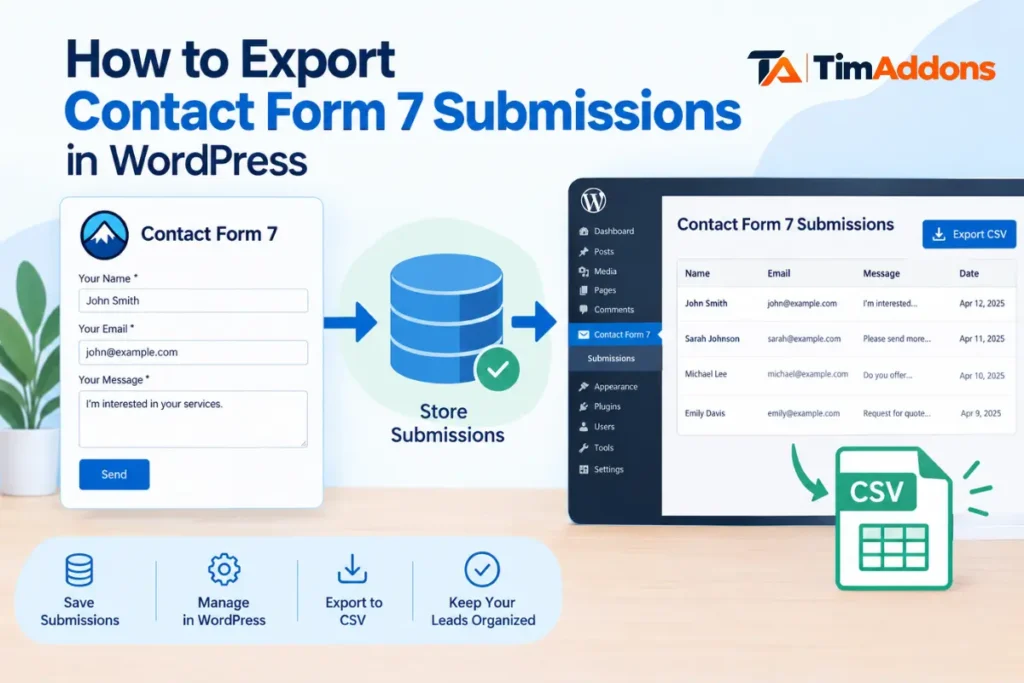
Website owners often need to export Contact Form 7 submissions for reporting, backups, lead management, or record-keeping. Contact Form 7 does not store form entries in the WordPress database by default, so exporting generally requires a compatible storage plugin (or another storage method) first. Once submissions are saved, many of these tools let you download them as a CSV file.
This guide explains why submissions may not appear in your dashboard, the practical steps to store and export them, and how tools such as TimAddons – Submission Log & Automation for Contact Form 7 can help.
Does Contact Form 7 Store Submissions in WordPress?
Not by default. Contact Form 7 handles the form itself: it validates the fields, processes the submission, and sends an email notification. It does not provide a built-in, permanent list of submissions inside your WordPress dashboard.
This matters because an email notification and a saved submission are different things:
- An email notification is a message delivered to an inbox. It can be deleted, filtered into spam, or lost if email delivery fails.
- A saved submission is a record kept on your website, usually in the database, so you can review, search, and export it later.
Receiving an email is useful for immediate alerts, but emails can be delayed, filtered as spam, or lost. Without a storage solution, those form entries are not available later for search, review, or export. Official documentation and the Contact Form 7 team recommend companion plugins when you need to keep submitted messages.
How to Export Contact Form 7 Submissions to CSV
The exact steps depend on the plugin you use, but the general process looks like this:
- Check whether existing submissions are stored. Look for a submissions or entries area in your WordPress dashboard, or check any storage plugin you may have installed already.
- Install and configure a submission-storage plugin if needed. Choose one that works with Contact Form 7 and supports exports.
- Submit a test entry. Fill in one of your forms yourself to confirm the submission is being saved.
- Open the plugin’s submission dashboard. Your test entry should appear there.
- Find the CSV export option. Not every plugin offers one, so check what yours supports.
- Export your submissions. Download the file and open it in spreadsheet software such as Excel, Google Sheets, or LibreOffice Calc.
Menu names and button labels vary between plugins, so follow the documentation for the one you choose.
What If Your Contact Form 7 Submissions Are Not Saved?
The most common reason you can’t find past entries is simple: nothing was set up to save them. Without a storage plugin or another configured storage method, Contact Form 7 passes the data to your email notification and that’s the end of it.
Installing a storage plugin today will not recover submissions from the past if they were never saved. In that case, your only copies may be the notification emails in your inbox. Check there, including spam and archived folders, and consider copying important leads into a spreadsheet manually.
The practical lesson is to set up storage before you need it.
What Information Can You Export From Contact Form 7?
The fields you can export depend on your form setup and your storage plugin. Commonly, they include:
- Name
- Email address
- Phone number, if your form collects it
- Message or enquiry details
- Submission date, if the plugin records it
- Other custom fields your form uses, where the storage solution supports them
If a field isn’t in your form, it can’t be exported. If a plugin doesn’t capture a certain field type, it won’t appear in the file.
How to Manage and Export Contact Form 7 Submissions With TimAddons
If you want a dedicated way to keep and download your entries, TimAddons – Submission Log & Automation for Contact Form 7 is one WordPress plugin designed for store and manage Contact Form 7 submissions. Based on its verified features, it:
- Stores submissions in a dedicated custom database table
- Displays submission information in its own WordPress dashboard
- Provides a dashboard widget so you can keep an eye on submissions
- Supports CSV export from the dashboard
The general workflow is straightforward. Once the plugin is active, new submissions are stored as they arrive. You review them inside WordPress and can then export the available records to CSV for reporting or record-keeping.
Contact Form 7 CSV Export: Common Questions
Can I export Contact Form 7 submissions to Excel?
Yes, indirectly. Export to CSV from your storage plugin, then open the file in Excel or import it into it. CSV files open in most spreadsheet programs.
Does Contact Form 7 save form entries automatically?
No. By default it sends email notifications but does not keep a permanent list of entries in the WordPress dashboard.
Can I export submissions without a storage plugin?
Not from Contact Form 7 itself. Without stored entries, there is nothing to export. Some sites use other storage methods, but these typically require extra setup or custom development.
Can I export all stored submissions at once?
Often yes, but it depends on the plugin. Check whether yours exports everything or only filtered or selected records.
Will installing a plugin recover old form submissions?
No. A plugin can only save submissions received after it is installed and working. Past entries that weren’t stored can’t be retrieved this way.
Can I keep a copy of submissions for reporting and record-keeping?
Yes, once they’re stored. You can export them to CSV periodically and save the files as backups or for reports. Remember that submissions may contain personal data, so store and share exports responsibly.
Conclusion
To export Contact Form 7 submissions you must first ensure the entries are stored. Contact Form 7 itself handles form display and email delivery; a companion storage solution is required for a searchable history and CSV export.
Review your current setup, install a suitable plugin if needed, test with a new submission, and then use the plugin’s export function. TimAddons – Submission Log & Automation is one option that stores submissions in a custom table, provides a dashboard interface and widget, and supports exporting records from within WordPress. Choose the solution that matches your site’s volume and reporting needs, keep a regular export schedule for important leads, and you will always have reliable access to your form data.