


When Contact Form 7 stops sending email alerts, it can be difficult to know whether the problem is with the form, WordPress, your hosting server, or the email itself.
The important thing is to separate two things: receiving a form submission and delivering an email notification.
A visitor may successfully submit a form, while the notification email never reaches your inbox. If you rely only on email alerts to track enquiries, a delivery problem can also mean a lead gets missed.
This guide explains how to troubleshoot Contact Form 7 not sending emails, and why storing submissions independently can give you another way to access your leads.
Is Contact Form 7 Receiving Submissions but Not Sending Emails?
Yes, it is possible for Contact Form 7 to receive a submission even when its email notification does not arrive.
These are two separate parts of the process.
When someone submits your form, Contact Form 7 processes the form data. It then uses its mail settings and the WordPress mail system to send a notification.
So, if the form shows a successful submission but you do not receive the email, the form itself may be working correctly. The problem could instead be related to Contact Form 7 mail settings, the recipient address, sender or Reply-To configuration, WordPress email configuration, SMTP or server-side email delivery, spam filtering, hosting restrictions, or your email provider.
Why Contact Form 7 Email Notifications May Stop Working
Check the Contact Form 7 Mail Settings
Start with the Mail tab of the affected Contact Form 7 form.
Check the following:
Recipient email: Make sure the “To” address is correct and belongs to the inbox where you expect to receive enquiries.
Sender address: Review the “From” address. Using an address associated with your website’s domain can be more reliable than using a visitor’s email address as the sender.
Reply-To address: If you want to reply directly to the person who submitted the form, check that the Reply-To field is configured correctly.
Also check that the mail tags used in the configuration match the fields in your form.
Check Whether the Form Is Actually Submitting
Next, test the form yourself.
Submit a test enquiry using a real email address and check what happens. Look for signs that the form submission itself is successful. For example, Contact Form 7 may display its successful submission message rather than showing a validation or submission error.
Test different fields if your form contains required fields, file uploads, dropdowns, or other custom inputs.
The goal is to answer one simple question: Does the form submit successfully even though the email does not arrive?
If the answer is yes, you can focus your troubleshooting on email delivery rather than rebuilding the form.
Check Your WordPress Email Configuration
WordPress relies on its mail system to send many website-generated emails.
Contact Form 7 uses this system for its notifications. If the WordPress mail process is not configured correctly or your hosting environment restricts outgoing mail, Contact Form 7 emails may not reach their destination.
This means a Contact Form 7 email issue is not always caused by Contact Form 7 itself.
If other WordPress emails are also failing, such as password-reset or website notification emails, the problem may be broader than your contact form.
Use SMTP Instead of Relying on Default WordPress Mail
SMTP, or Simple Mail Transfer Protocol, provides a dedicated method for sending email through an authenticated mail server.
For WordPress websites, configuring SMTP can help address problems associated with the default server mail system.
The general setup usually involves choosing an SMTP mail provider, entering the SMTP host, configuring the appropriate port, setting the correct encryption method, adding an authenticated email account, and testing the connection and email delivery.
You do not necessarily need to change your Contact Form 7 form to use SMTP. The important part is making sure your WordPress website has a reliable way to send outgoing email.
Check Spam and Junk Folders
Before making technical changes, check your spam or junk folder.
Sometimes the email has been successfully sent but filtered by the recipient’s email provider.
Search for the sender address, your website domain, or the subject line used by your Contact Form 7 notification.
If the message consistently lands in spam, you may need to review your domain and email configuration rather than changing the form itself.
What If the Form Submission Works but the Email Still Doesn’t Arrive?
If the form submits successfully but the email does not arrive, you are usually dealing with an email delivery or notification problem, not necessarily a form-submission problem.
This creates another practical question: What happens to the lead while you are troubleshooting the email problem?
If the submission exists only inside the email notification, you may have no convenient record to review if that notification is missed.
For a business website, this can make troubleshooting more than an email problem. It can become a lead-management problem.
A separate record of form submissions gives you another way to access the information submitted through your forms.
Why You Shouldn’t Rely Only on Email Notifications for Form Leads
Email notifications are useful, but they do not have to be the only place where your form enquiries exist.
An email can fail to arrive, be filtered into spam, be overlooked in a busy inbox, become difficult to find later, get mixed with other messages, or make it harder to maintain a centralized history of enquiries.
For example, imagine receiving dozens of enquiries every month. Searching through an inbox for an old customer’s name or a particular form submission may take more time than viewing submissions in one centralized location.
Attachments and submission details can also become harder to manage when everything is stored as individual emails.
This does not mean email notifications are unnecessary. It means they can work alongside a separate submission-storage system.
Store Contact Form 7 Submissions in a Dedicate Custom Database Table
A useful approach is to store Contact Form 7 submissions independently from email notifications.
Instead of relying entirely on the notification email, the submitted information can also be saved in a dedicated database structure. This gives you a separate record that you can access from your WordPress admin area.
But how can you actually save Contact Form 7 submissions this way without building the database system yourself?
This is where a submission-storage plugin can make things easier. For example, TimAddons – Submission Log & Automation is designed to store Contact Form 7 submissions in a dedicated custom database table and make that information available inside WordPress.
So, even if an email notification is missed, the submission can still be available in WordPress, provided it was successfully stored.
With the submissions stored separately, you can also get benefits such as:
• Centralized submission records: Keep form enquiries together instead of searching through multiple inboxes.
• Easier searching: Find older submissions more easily.
• Better lead management: Review and organize incoming lead information from WordPress.
• Historical access: Keep access to previously submitted information.
• Better data organization: View submission information in a structured format.
• CSV export: Export submission data for reporting, analysis, backups, sharing, or spreadsheet-based workflows.
• Access when an email is missed: Review a stored submission even when its notification email was not received.
Custom Database storage does not replace email delivery. Email notifications and submission storage solve different problems. Email helps notify you that a new enquiry has arrived. Submission storage gives you an additional record of the enquiry.
Using both can provide a more practical workflow for managing form leads.
How TimAddons Plugin Helps Protect and Manage Contact Form 7 Leads
If you want to store and manage Contact Form 7 submissions directly inside WordPress, TimAddons provides a dedicated submission and lead-management approach.
This add-on is designed to work as an additional layer for managing Contact Form 7 submission data rather than as a replacement for email delivery.
Custom Database for Contact Form 7 Submissions
TimAddons creates a dedicated custom database table for storing Contact Form 7 submission and lead data.
This means submitted information can be kept independently of the email notification process.
If an email notification is missed, the stored submission can still be available inside WordPress, provided the submission was successfully recorded.
The focus is on Contact Form 7 submission storage and lead management, rather than simply managing a WordPress database.
View Lead Information Inside WordPress
TimAddons allows users to access and review CF7 lead and submission information directly from the WordPress admin area.
Instead of searching through an inbox every time you need to find an old enquiry, you can review the available submission information from within WordPress.
WordPress Dashboard Widget
TimAddons – Submission Log & Automation for Contact Form 7 can also display lead information through a WordPress dashboard widget.
This makes recent submission information easier to access when working inside the WordPress dashboard.
Dedicated Submission Dashboard
TimAddons provides a dedicated dashboard for managing Contact Form 7 submissions.
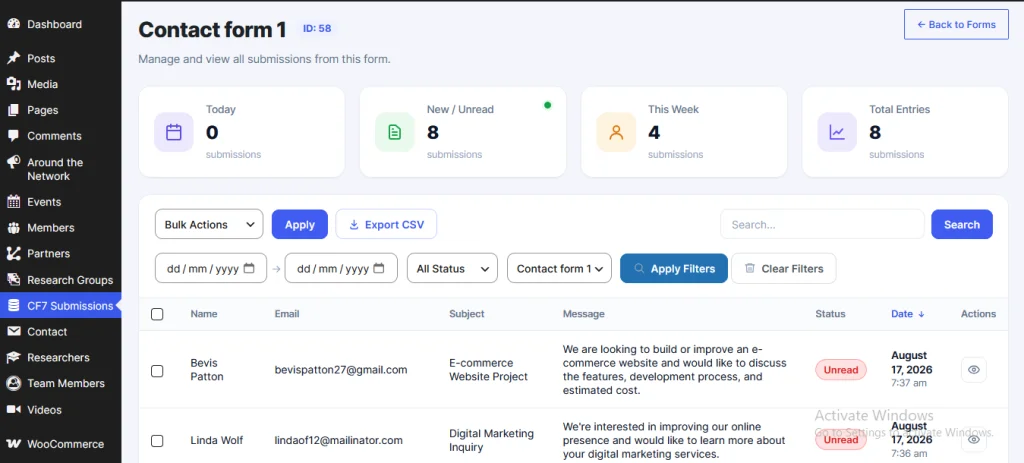
Users can work with features such as searching submissions, sorting submission information, pagination for larger submission lists, read/unread status, and viewing submission information.
Export Contact Form 7 Submissions to CSV
This plugin also allows submission and lead data to be exported as a CSV file directly from the dashboard.
CSV exports can be useful for backups, reporting, data analysis, sharing submission information, and spreadsheet-based lead management.
Contact Form 7 Email vs Database Storage
| Feature | Email-only workflow | Email + database storage |
| Receive email notifications | Yes | Yes |
| Centralized submission history | Limited | Yes |
| Search old submissions | Limited | Easier |
| Manage submissions in WordPress | No/limited | Yes |
| Export submissions | Limited | Yes |
| Access records if an email is missed | No | Yes, if the submission was stored |
| Centralized lead information | Limited | Yes |
The key point is that database storage is a complementary layer, not a replacement for email. If your website depends on Contact Form 7 for enquiries, having a separate record of submissions can make lead management easier and reduce dependence on a single notification channel.
A Simple Contact Form 7 Email Troubleshooting Checklist
If Contact Form 7 is not sending emails, work through this checklist:
☐ Submit the form yourself and confirm whether the form submission works.
☐ Check the Contact Form 7 Mail settings.
☐ Verify the recipient email address.
☐ Review the sender address.
☐ Check the Reply-To configuration.
☐ Look in the spam and junk folders.
☐ Check your WordPress email configuration.
☐ Consider using SMTP for outgoing WordPress email.
☐ Submit another test form after making changes.
☐ Consider storing Contact Form 7 submissions independently.
Start with the simplest checks first. There is no need to change several settings at once because that can make it harder to identify what actually fixed the problem.
Frequently Asked Questions
Why is Contact Form 7 not sending email notifications?
Common causes include incorrect Mail settings, an incorrect recipient address, sender or Reply-To configuration problems, WordPress mail configuration, SMTP issues, spam filtering, or hosting and email-provider restrictions.
How do I check if Contact Form 7 submissions are working?
Submit the form yourself and check whether Contact Form 7 processes the submission successfully. If the form submits but the notification does not arrive, the problem may be related to email delivery rather than the form submission itself.
Does Contact Form 7 store submissions in WordPress?
Contact Form 7 itself primarily handles form processing and email notifications. If you want to independently store and manage submitted information in WordPress, you can use a compatible submission-storage solution.
Can I save Contact Form 7 submissions in a database?
Yes. A submission-storage solution can save Contact Form 7 submissions in a dedicated database structure so they can be accessed independently from email notifications.
How can I export Contact Form 7 submissions?
If your submission-management solution supports exporting, you can export stored Contact Form 7 submission data as a CSV file. TimAddons – Submission Log & Automation provides CSV export from its submission dashboard.
Can I access Contact Form 7 submissions if an email is not received?
Yes, if the submission was independently stored. Email delivery and submission storage are separate processes, so a stored submission may remain accessible even when its notification email was missed.
How can I prevent losing Contact Form 7 leads?
First, make sure your email configuration is working correctly. Then consider storing Contact Form 7 submissions independently so you have a separate record of enquiries rather than relying only on email notifications.
Conclusion
When Contact Form 7 is not sending emails, start by troubleshooting the notification process. Check the Mail settings, test the form, review WordPress email configuration, consider SMTP, and check your hosting and email provider.
But remember that email delivery and submission storage are not the same thing.
A form can successfully receive a submission even when its notification email fails to reach your inbox. For businesses that depend on contact forms for enquiries, keeping an independent record of submissions can provide an additional way to access and manage those leads.
TimAddons – Submission Log & Automation plugin provides this additional layer for Contact Form 7 by storing submissions in a dedicated custom database table, displaying lead information through a WordPress dashboard widget, providing a dedicated submission dashboard, and allowing submission data to be exported as CSV.
If you want to manage and store your Contact Form 7 submissions directly in WordPress, you can explore and download “TimAddons – Submission Log & Automation for Contact Form 7” plugin as an option.